 Toolyn
Capture · in the tool list
A clipboard manager for Windows that stays on your PC
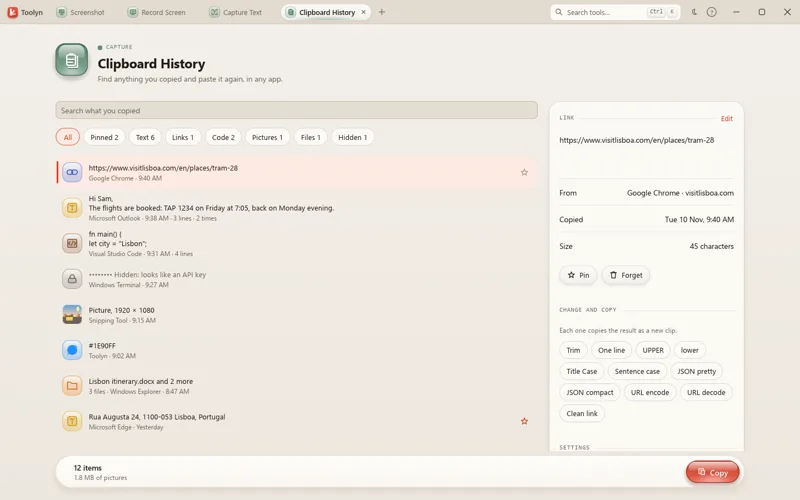
Clipboard History keeps what you copy in any app: text with its formatting, links, code, colors, pictures and files, each with the app it came from. Search it, pin what you want to keep, and press Ctrl+Alt+V in any app to paste something from it. It's off until you turn it on, and nothing is uploaded.
- Works offline
- No uploads
- No account
- No subscription
How it works
4 steps, start to finish.
Turn it on
Open Clipboard History and press Turn on Clipboard History. Until then it reads nothing.
Copy as usual
What you copy in any app shows up at the top of the list, with the app it came from.
Find it again
Search, or pick a chip like Links or Pictures. Pin what you want to keep.
Paste it anywhere
Press Ctrl+Alt+V in any app, type a few letters and press Enter. It goes into the app you were in.
What it can do
Clipboard History, in detail.
Text, pictures and files
Text keeps the formatting it came with, so it pastes into Word or an email looking the same. Links, code, colors, pictures and the paths of files you copy are kept too.
Quick Paste
Ctrl+Alt+V opens a small window by the text cursor. Enter pastes, Shift+Enter pastes plain text, and 1 to 9 paste a numbered row.
Search and chips
Find text, app names, file names and web addresses, or show only Pinned, Text, Links, Code, Pictures or Files.
Keys you know
Up and Down, or Ctrl+J and Ctrl+K as in Vim, even while you type in the search. Enter copies, Ctrl+P pins, Delete forgets.
Change and copy
Trim a text, put it on one line, change its case, lay out or compact JSON, or take the tracking out of a link. The result is a new clip.
Passwords stay hidden
Copies that look like passwords, API keys, tokens or card numbers show as dots, aren't searched, and are forgotten after an hour.
Copies that password managers mark as private are never recorded, and neither is anything copied in KeePass, KeePassXC, 1Password, Bitwarden or Enpass. You can add other apps to that list.
Questions
Clipboard History: plain answers.
Is it on as soon as I install Toolyn?
No. Clipboard History reads nothing until you press Turn on Clipboard History in the tool. Turning it off stops the recording, and what it kept stays until you clear it.
Does it record my passwords?
Copies that password managers mark as private are never recorded, and neither is anything copied in KeePass, KeePassXC, 1Password, Bitwarden or Enpass. Other copies that look like passwords, keys or card numbers show as dots and are forgotten after an hour, unless you pin them.
How much does it keep?
Up to 1,000 items for 30 days, unless you choose other limits: 100 to 5,000 items, and a day to 90 days or no time limit. Pinned items stay until you unpin them.
Where is my clipboard history kept?
On your PC, in %LOCALAPPDATA%\Toolyn\clipboard. The text is encrypted for your Windows account and pictures are PNG files. Clipboard History never goes online.
Can I change the Ctrl+Alt+V shortcut?
Yes. Pick Ctrl+Alt+H or Ctrl+Shift+Alt+V in the tool's settings, or turn the shortcut off. On keyboards where AltGr+V types a letter, it uses Ctrl+Alt+H by itself.
Does it work with Toolyn's window closed?
Yes, if you turn on Keep Toolyn running in Settings. Toolyn then stays by the clock, and Quick Paste works from there. Clipboard History records only while Toolyn runs.
In the same app
Related tools, no extra install.
Clipboard History and 71 more tools.
One app for Windows, paid once, with every update included. Nothing you open in it is uploaded.