 Toolyn
Capture · in the tool list
A screenshot tool for Windows that does the next step too
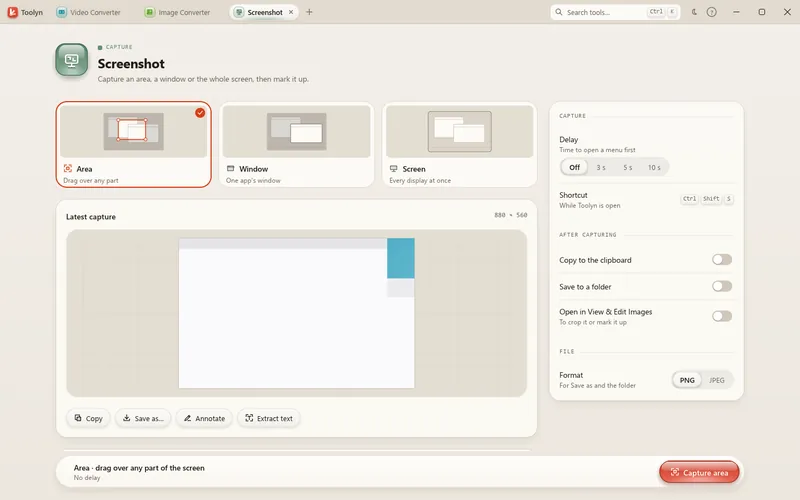
Screenshot captures an area, a window or every display at once, with an optional delay. Then it copies the picture, saves it, opens it to mark up, or pulls the text out of it, without another app.
- Works offline
- No uploads
- No account
- No subscription
How it works
4 steps, start to finish.
Pick what to capture
Area, Window or Screen, and a delay of 3, 5 or 10 seconds if you need it.
Capture
Press the button, or Ctrl+Shift+S while Toolyn is open.
Decide what happens next
Copy to the clipboard, save to a folder (Pictures\Screenshots to start), or open it to mark up. Any or all of them.
Mark it up or read it
Annotate opens View & Edit Images; Extract text opens Capture Text.
What it can do
Screenshot, in detail.
Every display
Screen captures all your displays at once, sharp on mixed-DPI setups.
One window
Window mode brings the window to the front and captures just it.
PNG or JPEG
Saved as “Screenshot” with the date and time in the name.
Recent captures
Your last six captures stay at hand until Toolyn closes.
Mark up
Arrows, text, shapes, highlights and blur in View & Edit Images.
Make it pretty
Beautify Screenshot puts it on a backdrop with rounded corners and a shadow.
Questions
Screenshot: plain answers.
Does it replace the Print Screen key?
No. Ctrl+Shift+S works while Toolyn is open; Print Screen keeps doing what Windows does.
Can I capture just one window?
Yes. Window mode brings that window to the front and captures only it.
Where are my screenshots saved?
In Pictures\Screenshots unless you pick another folder, as PNG or JPEG. Saving is optional: you can just copy them.
Can I get the text out of a screenshot?
Yes. Press Extract text on a capture and it opens in Capture Text.
In the same app
Related tools, no extra install.
Screenshot and 68 more tools.
One app for Windows, paid once, with every update included. Nothing you open in it is uploaded.