 Toolyn
System · in the tool list
A screen time tracker for Windows, app by app
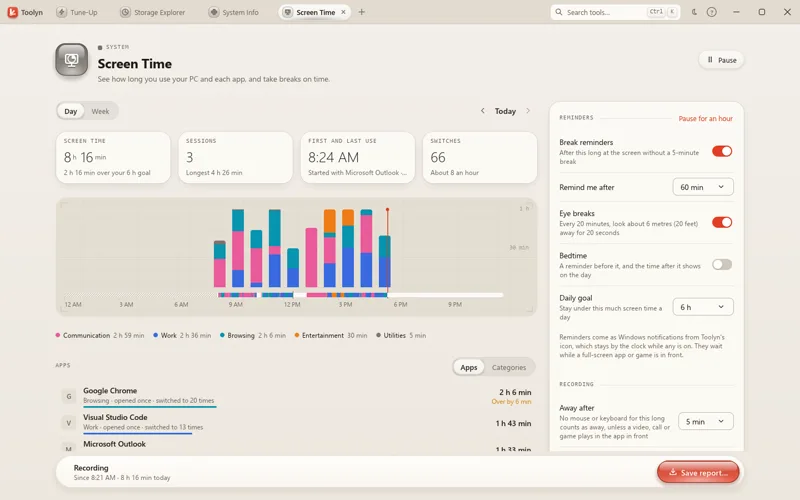
Screen Time counts how long you use your PC and each app, how often you open and switch to them, and when you step away. It can remind you to take a break, or tell you when an app's daily limit is near. It's new in Toolyn 0.4.0. It's off until you turn it on, and it never reads window titles or what you type.
- Works offline
- No uploads
- No account
- No subscription
How it works
4 steps, start to finish.
Turn it on
Press Turn on Screen Time. It offers to keep Toolyn running and start it when you sign in, so whole days get counted.
Use your PC
It notes which app is in front, and when the PC is locked, asleep or left alone.
See your day
Time per app and per kind of app, and a chart by the hour. Week shows the whole week.
Set limits if you like
Give an app a daily limit, or turn on reminders for breaks, your eyes, bedtime or a daily goal.
What it can do
Screen Time, in detail.
Time per app
How long each app was in front, how many times you opened it and switched to it, and its longest stretch.
Your day and your week
A chart by the hour on Windows' 12- or 24-hour clock, and one by the day for the week, with sessions and first and last use.
Kinds of apps
Work, Communication, Browsing, Entertainment, Games and more, stacked in the charts. Change an app's category if the guess is wrong.
Videos and calls count
A video, a call or a game keeps counting while it plays in the app in front, for up to 4 hours without the mouse or keyboard.
Daily limits
Give an app 15 minutes to 4 hours a day. A note comes 5 minutes before, at the limit and every 15 minutes after. Nothing is closed.
Reminders
A break after 30, 45, 60 or 90 minutes at the screen, an eye break every 20 minutes, bedtime and a daily goal. All off until you turn them on.
Screen Time never reads window titles, what you type or what's on screen, and it has no keyboard or mouse hook. What it keeps is encrypted for your Windows account and stays on your PC for 90 days, unless you choose 30 days, a year or always.
Questions
Screen Time: plain answers.
Does Screen Time see what I do in an app?
No. It notes which app is in front and when. It never reads window titles, what you type or what's on screen, so it doesn't know which web page or file you have open.
Does it count while Toolyn is closed?
No, it counts only while Toolyn runs. When you turn it on, it offers to keep Toolyn running with its window closed and to start it when you sign in, so whole days get counted.
Will it close an app when I reach its limit?
No. A note comes 5 minutes before the limit, when it's reached and every 15 minutes after that. Nothing is closed or blocked.
Where is my screen time kept?
On your PC, in %LOCALAPPDATA%\Toolyn\screentime, encrypted for your Windows account. It keeps 90 days unless you choose 30 days, a year or always, and it never goes online.
Can I export my screen time?
Yes. Save report… writes the time per app and day, or every stretch an app was in front, as a CSV file for a spreadsheet or a timesheet.
In the same app
Related tools, no extra install.
Screen Time and 71 more tools.
One app for Windows, paid once, with every update included. Nothing you open in it is uploaded.