 Toolyn
PDF & Docs · in the tool list
Merge PDF files on Windows, offline
Merge PDF joins PDFs, and pictures too, into one file in the order you set. Each file gets its own bookmark, so the merged PDF is easy to find your way around. Photos can also become a PDF of their own with Images to PDF.
- Works offline
- No uploads
- No account
- No subscription
How it works
4 steps, start to finish.
Drop the files
PDFs, and JPG, PNG, WebP, BMP, TIFF or HEIC pictures, which become a page each.
Put them in order
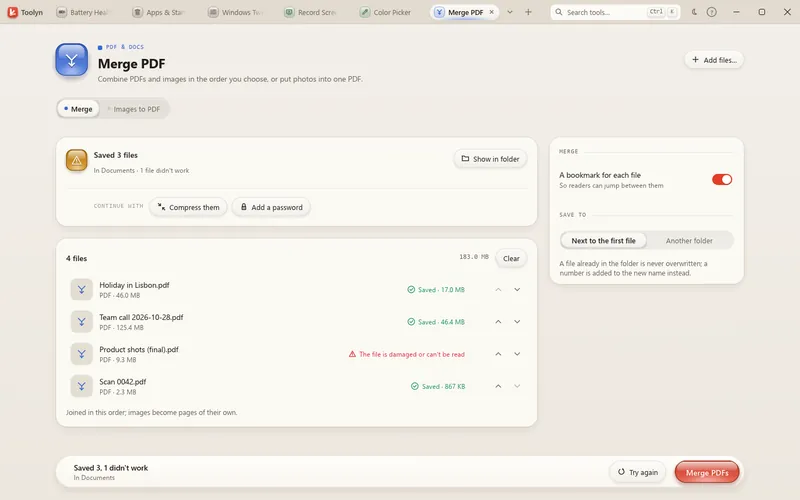
Move each file up or down the list.
Bookmarks
Keep “A bookmark for each file”, named after the file, or switch it off.
Merge, then carry on
Compress the result or add a password in one click.
What it can do
Merge PDF, in detail.
Images to PDF
Photos become a PDF with the page size of the image, A4 or Letter, any orientation, and no, small or wide margins.
Problems in plain words
A damaged file is named and explained, and Try again runs only the files that failed.
Your files stay as they were
Merging makes a new PDF and leaves the files you dropped untouched.
Questions
Merge PDF: plain answers.
Can I merge pictures with PDFs?
Yes. JPG, PNG, WebP, BMP, TIFF and HEIC pictures each become a page in the merged PDF.
Can I change the order of the pages inside a PDF?
Merge PDF orders whole files. To move single pages, open the merged PDF in the PDF Editor's Pages mode.
What if one of the PDFs is damaged?
Toolyn tells you which file it couldn't read and why, and merges the rest.
Are my files uploaded?
No. Merging happens on your PC.
In the same app
Related tools, no extra install.
Merge PDF and 68 more tools.
One app for Windows, paid once, with every update included. Nothing you open in it is uploaded.