 Toolyn
Files · in the tool list
Batch rename files on Windows, with a live preview
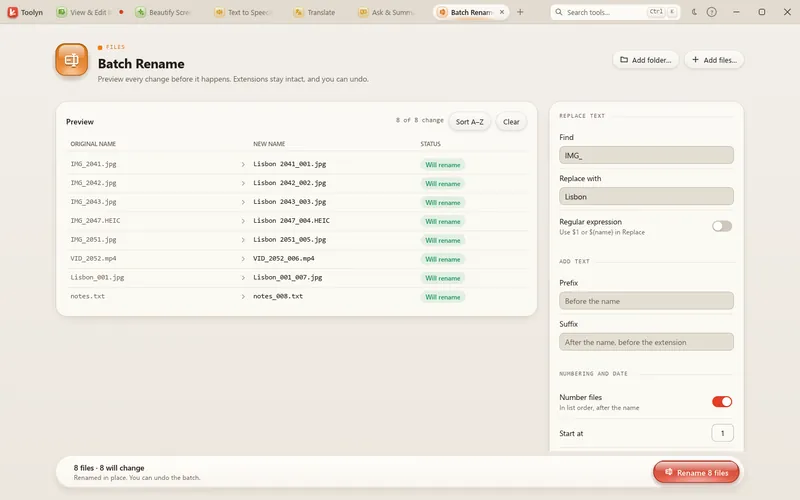
Batch Rename renames a whole list of files at once: find and replace, plain or with regular expressions, a prefix or suffix, numbering, today's date or a change of case. You see every old and new name side by side before anything changes, and Ctrl+Z puts them all back.
- Works offline
- No uploads
- No account
- No subscription
How it works
4 steps, start to finish.
Add the files
Drop files, or a folder to add the files directly inside it.
Set the rules
Find and replace, prefix and suffix, numbering, date and case.
Check the preview
Duplicate names, files that already exist and names Windows won't allow are flagged before you start.
Rename
One click renames them all. Ctrl+Z undoes the whole batch until Toolyn closes.
What it can do
Batch Rename, in detail.
Find and replace
Plain text, case-sensitive, or a regular expression with $1 and ${name} groups.
Prefix and suffix
The suffix goes before the extension, where you want it.
Numbering
Start anywhere from 0 to 999999 with 1 to 10 digits, in list order.
Date and case
Add today's date as YYYY-MM-DD_, or switch to lowercase or UPPERCASE.
Your order
Sort A–Z, move files up or down, or take one out.
Safe by design
Nothing is overwritten, names are checked again right before renaming, and a failed batch rolls back.
Questions
Batch Rename: plain answers.
Can I undo a rename?
Yes. Ctrl+Z puts the whole batch back, until you close Toolyn.
Does it change file extensions?
No. Extensions are always kept as they are.
Does it include files in subfolders?
No. Adding a folder adds the files directly inside it.
Can I use regular expressions?
Yes. Switch find and replace to regex and use $1 or ${name} to reuse what you matched.
In the same app
Related tools, no extra install.
Batch Rename and 68 more tools.
One app for Windows, paid once, with every update included. Nothing you open in it is uploaded.